
SolarEdge Inverter Wi-Fi Reconnect
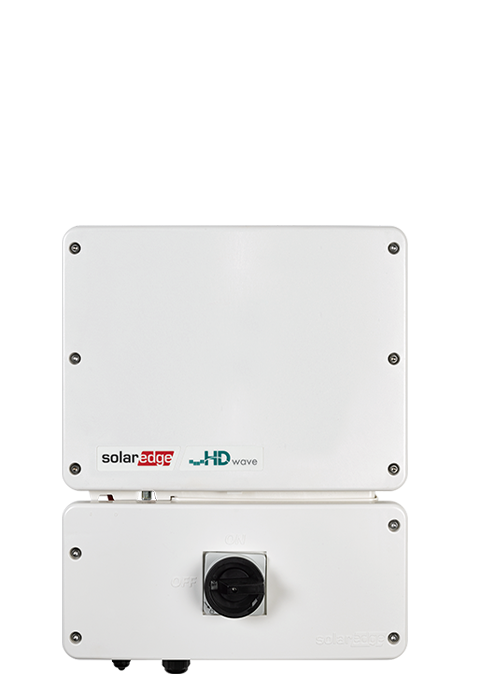
Step by Step Guide
1. Prep & Quick Reset
Stand close to the inverter and check that your home Wi-Fi network appears in the list. Weak signal strength is a common cause of connection dropouts.
Restart the inverter (turn it off, then back on) to give it a clean attempt at reconnecting before continuing with AP mode.
2. Start in the mySolarEdge App
Open mySolarEdge and sign in.
Go to Menu then tap on Inverter Communication.
Scan the inverter’s QR code when the app asks you to.
3. Put the inverter into AP Mode
Find the red button located on the side of the inverter.
Pull it to the left, hold for about 2 seconds, then release to activate AP mode.
The mySolarEdge app will ask to join the inverter’s temporary Wi-Fi network and tap Join.
Tap Configure.
Choose your home Wi-Fi, enter the password, then tap Join to complete the setup.
Success: The inverter will automatically reconnect to your home Wi-Fi network.
Troubleshooting Tips
If you don't get a prompt to join in the app, repeat the AP mode step (pull the red button again) and stay close to the inverter with your phone.
Double-check your Wi-Fi password and if it is case-sensitive.
If the inverter will still not connect after AP mode, restart the inverter and repeat the steps starting from Inverter Communication.
Ensure your router’s 2.4 GHz network is enabled (SigenStor cannot use 5 GHz).
Still having trouble?
If you are still having issues reconnecting your inverter to wi-fi, you can contact us as Essential Solar.
Or call our dedicated tech support number and selecting Option 4.
