
Fronius Inverter Wi-Fi Reconnect

Fronius GEN24 and GEN24 Plus Series
1. Check your Wi-Fi signal
Stand near your inverter and use your phone to see if your home Wi-Fi network appears in the list.
If your Wi-Fi network does not show up, the signal is too weak. Move your router closer or install a Wi-Fi extender.
Your inverter can only connect if it can detect your home Wi-Fi network from its location.
2. Try a power cycle first
If you have not changed internet providers, try restarting the inverter before updating the Wi-Fi settings.
Turn the AC supply OFF using the main switch or inverter circuit breaker.
Turn the DC supply OFF using the isolator beside the inverter.
Wait until the inverter fully shuts down, then turn the DC back ON, followed by the AC.
Once it restarts, check for a solid blue Wi-Fi light. This indicates a successful reconnection.
If the blue light does not appear, continue with the manual reconnect steps below.
3. Activate the inverter’s Wi-Fi access point
Press and hold the middle button on the inverter until the Wi-Fi indicator above the icon begins flashing.
This turns on the inverter’s built-in Wi-Fi hotspot.
4. Connect your phone or tablet to the inverter's hotspot
Open your device’s Wi-Fi settings and look for a network starting with fronius_3xxxxxxx.
Select it.
Enter the default password 12345678.
Wait until your device shows a tick or ‘connected’ status before continuing.
5. Access the inverter’s web interface
Open a web browser such as Chrome or Safari.
Type 192.168.250.181 into the address bar and press Enter.
The inverter’s local interface will appear, showing system bubbles and live data.
6. Log in to communication settings
Tap the menu icon (three horizontal lines or ‘hamburger’ icon) in the top-right corner.
Select Communication.
Choose Customer as the login role.Enter your customer password.
Your installer will have provided this after installation.
7. Configure your home Wi-Fi network
After logging in, open the menu again and select Network.
Make sure your phone remains connected to the Fronius Wi-Fi hotspot.
In the middle section of the page, tap Wi-Fi.
Your available home Wi-Fi networks will appear.
Select your home Wi-Fi network, enter your Wi-Fi password, and save the settings.
Once connected, the inverter will automatically switch to your home Wi-Fi network.
8. Confirm connection
Wait a few moments and check the inverter’s Wi-Fi indicator:
- Solid blue light = connected to Wi-Fi
- Flashing light = still attempting to connect
You can also confirm the connection by checking your live data on Fronius Solar.web.
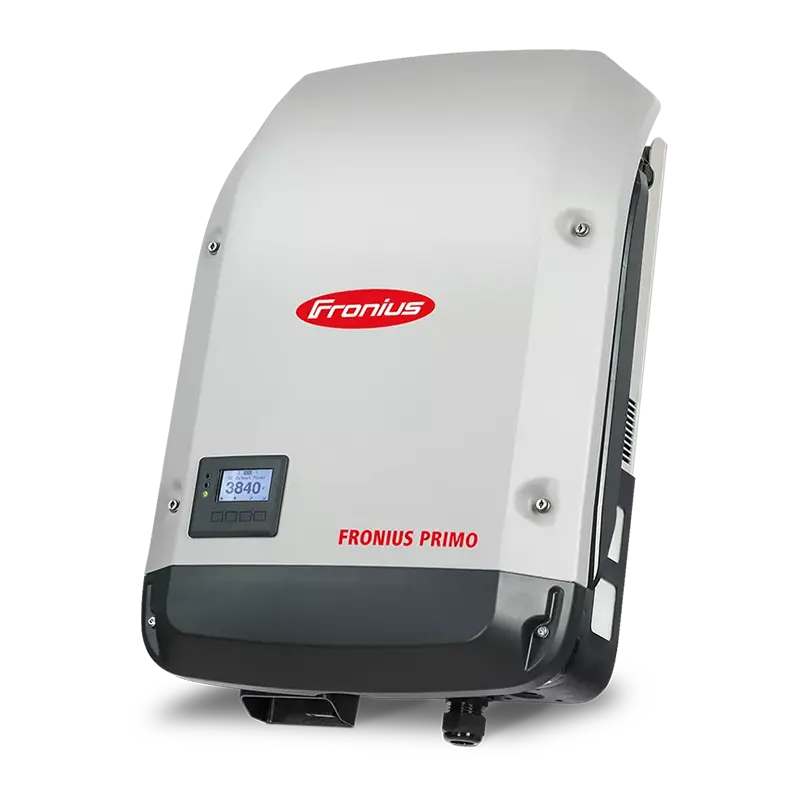
Fronius Primo/Symo Series
1. Prepare your setup
Confirm that your home Wi-Fi network is working correctly. Test it by connecting with your phone or tablet.
Keep a laptop or tablet nearby, as the setup is easier to complete on a larger screen.
If you have changed your internet provider, modem/router, Wi-Fi name (SSID), or password, you will need to reconnect your inverter using the updated details.
2. Activate the inverter’s Wi-Fi access point
On the inverter display, press the Back or Menu button to open the Setup menu.
Navigate to Setup.
Select Wi-Fi Access Point and tap Activate / Enable.
The inverter will start broadcasting a Wi-Fi network whose name begins with FRONIUS_240.XXXXXX.
The default password is usually 12345678, unless your inverter label lists a different password or your installer has provided a unique one.
3. Connect your device to the inverter’s hotspot
Open the Wi-Fi settings on your phone, tablet, or laptop and select the network that begins with FRONIUS_240.
Enter 12345678 (or the custom password provided for your inverter).
4. Access the inverter’s web interface
After connecting to the hotspot, open a web browser such as Chrome.
In the address bar, type 192.168.250.181 and press Enter.
When the Fronius web interface loads, log in using the Customer account (or Installer if required).
If you do not know your password, contact your solar installer for help.
5. Configure your home Wi-Fi network in the inverter
In the interface, go to Settings, then select Network (or Communication then Network, depending on your model).
At the bottom of the Network Settings menu, select the home Wi-Fi network you want the inverter to connect to.
Click Set.
Enter your Wi-Fi password, then click Save or Apply.
When prompted, confirm that you want to apply the new settings (look for a tick or checkmark icon).
6. Verify the connection
On the inverter display, navigate to Setup, then Network and then Status.
Check that a valid IP address is shown. If it displays 0.0.0.0, the inverter is not yet connected.
You can also confirm connection by logging in to your Fronius Solar.web portal and checking that live data is updating.
Troubleshooting Tips
If no Wi-Fi networks appear, use a Wi-Fi extender or consider an Ethernet connection.
Double-check your Wi-Fi password and if it is case-sensitive.
If the inverter still will not connect, restart the unit and repeat the steps.
For ongoing issues, contact your installer or Fronius Support.
Still having trouble?
If you are still having issues reconnecting your inverter to wi-fi, you can contact us as Essential Solar.
Or call our dedicated tech support number and selecting Option 4.
