
Enphase Inverter Wi-Fi Reconnect
Step by Step Guide
If all the LEDs on your gateway are off, it may not be receiving power.
- Make sure the circuit breaker is switched on. It is usually the middle breaker in the IQ Combiner box, and breaker inside the utility meter or sub panel for standalone gateways.
- For standalone gateways plugged into a power outlet, confirm they are plugged into a working outlet and turned on.
If all the gateway LEDs are still off or continuously flash red, try restarting the gateway. To restart
- Turn off the gateway's circuit breaker (or unplug the gateway power cord from the power outlet).
- Wait for 30 seconds.
- Turn back the breaker on (or plug the gateway power cord back in).
1. Check your WiFi signal strength
Stand near your Envoy and check your home WiFi on your phone.
If your network does not appear, the signal is too weak. Install a WiFi extender or move your router closer.
Without a detectable signal, the Envoy cannot connect to the internet.
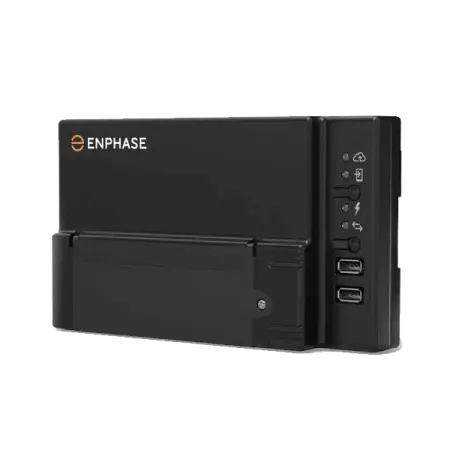
2. Locate your Envoy communication gateway
Your Envoy may be wall-mounted, inside a switchboard, or behind a cover panel.
Look for the button below the symbol showing a mobile phone.
Press this button.
A green light will appear beside the icon, meaning the Envoy is ready for Wi-Fi setup.
3. Connect your phone to the Envoy hotspot
Open Wi-Fi settings on your phone.Look for a network beginning with Envoy_XXXXXX (your serial number).
Tap to connect.If asked for a password, enter the last 6 digits of the Envoy serial number which is printed on the label.
4. Open the Envoy login page
Open a web browser (Chrome or Safari recommended).
In the address bar, type: 172.30.1.1Press Enter. This will open the Envoy interface.
5. Log in to network settings
When prompted:
- Username: envoy
- Password: last 6 digits of the Envoy serial number
Tap Sign In.
6. Connect the inverter to your home Wi-Fi
Go to Wi-Fi or Network settings.
Forget or remove the old WiFi network if still stored.
Select your new home WiFi name (SSID) from the list.
Enter your WiFi password carefully, in case it is case-sensitive.
Tap Connect.
7. Wait for connection to complete
Allow up to 3 minutes.
Once successful, you should see:
- Connected to WiFi.
- Envoy online in the Enphase App / Enlighten Portal.
A solid connection indicator light on the Envoy also confirms success.
8. Confirm system monitoring
Open the Enphase Enlighten or Installer App.
Check that solar production and device status are updating normally.
Troubleshooting Tips
If the Envoy hotspot does not appear, press the Wi-Fi button again.
Ensure your router’s 2.4 GHz band is active (Envoy may not support 5 GHz).
Reboot your router if the connection fails.
Check that your Wi-Fi password contains no errors and if it is case-sensitive.
If no improvement, contact your installer or Enphase support.
Still having trouble?
If you are still having issues reconnecting your inverter to wi-fi, you can contact us as Essential Solar.
Or call our dedicated tech support number and selecting Option 4.
