
Tesla Powerwall Wi-Fi Reconnect
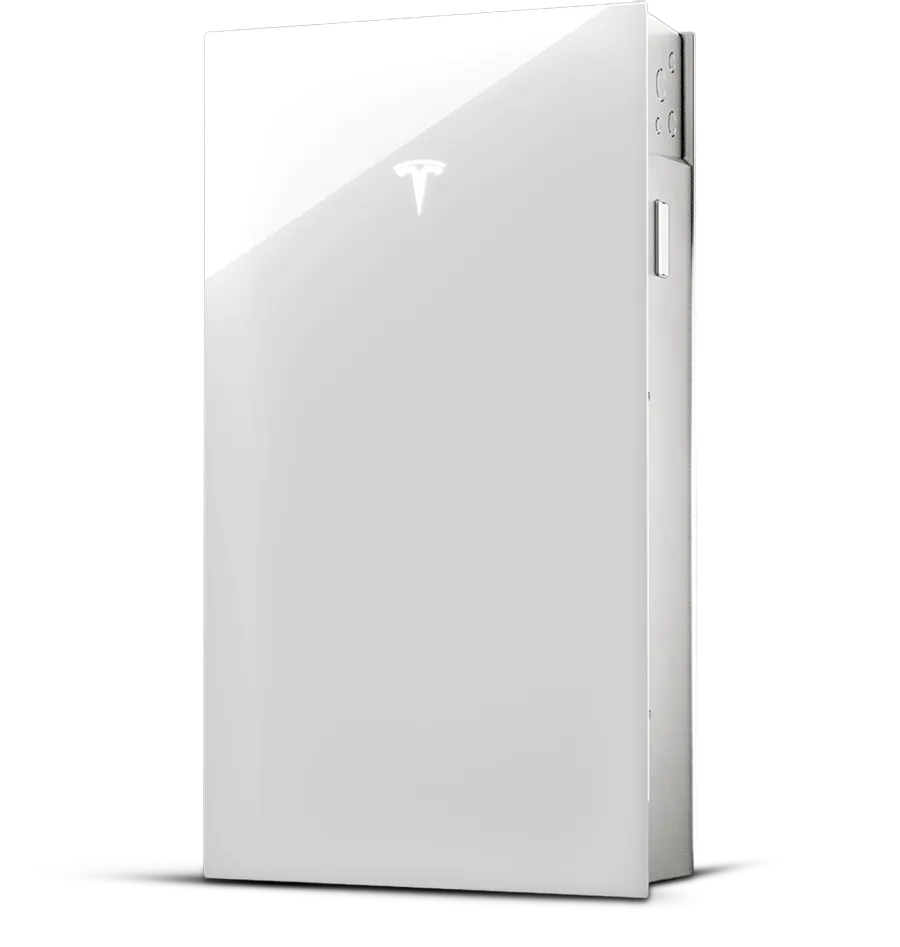
For Gateway 1 and Gateway 2
1. Check your Wi-Fi signal strength
Stand next to your Tesla Gateway with your phone and ensure your home Wi-Fi network appears in your phone's available network list.
2. Activate Wi-Fi Configuration
Open the Tesla app on your smartphone and locate your home energy site.
Select Settings and then tap Configure Wi-Fi at the bottom of the screen.
Follow the in-app prompts to prepare your hardware:
- For Gateway 1: Tap 'Manually Enter Details' and use the serial number from your Tesla app as the password (ex. STG1…<serial>).
- For Gateway 2: Scan the QR code located behind the glass door.
3. Connect device Wi-Fi
When prompted by the app, join the Powerwall’s local network (usually named "TEG-xxx").
- For Gateway 1: Select "Manually Enter Details" and use your Gateway serial number as the password.
- For Gateway 2: Simply scan the QR code located behind the glass door to connect automatically.
Stay next to your system until the connection is confirmed by your phone.
4. Network setup
Once connected to the Gateway's internal Wi-Fi, return to the Tesla app.
Select your home Wi-Fi network from the list of available networks and enter your network password.
Tap Connect to bridge the Powerwall to your internet. The process may take up to five minutes to sync.
If Powerwall is Connected to the Internet Through Cellular or Wired Ethernet
If your Powerwall is actively connected to the internet through cellular or wired ethernet, follow the steps below to configure Wi-Fi without having to be near your Powerwall or Gateway.
To Connect Your Powerwall to Wi-Fi for the First Time
1. In the Tesla app, locate your home energy site.
2. Select ‘Network Setup.’
3. Select your preferred Wi-Fi network.
4. Enter your Wi-Fi network password.
5. Your Powerwall is officially connected to Wi-Fi once you see a confirmation message on the screen.
To Change Your Existing Wi-Fi Connection
1. In the Tesla app, locate your home energy site.
2. Select 'Settings.’
3. Select ‘Configure Wi-Fi’ at the bottom of the screen.
4. Select the Wi-Fi network you would like your Powerwall connected to.
If You Do Not Want to Connect Your Powerwall to Wi-Fi
1. In the Tesla app, locate your home energy site.
2. Select ‘Network Setup.’
3. Select ‘I don’t have a home Wi-Fi network.’
Note: You can connect your Powerwall to a Wi-Fi network at any time in the future by going to the ‘Settings’ page located on the Tesla app home screen.
Troubleshooting Tips
If the connection to the Powerwall Wi-Fi network fails, reset your Gateway or Powerwall, wait five minutes and try again.
A Wi-Fi signal strength between two or three bars is required for successful connection to your home network. If a signal strength of two or three bars is not achieved, relocate your access point.
Still having trouble?
If you are still having issues reconnecting your inverter to wi-fi, you can contact us as Essential Solar.
Or call our dedicated tech support number and selecting Option 4.
